What is an action
Actions are operations that will be executed, they can be seen as "templates" that will be used by your commands. A few examples:
- Copy a file
- Create Directory
- Remove directory
There are a lot of default actions that you can use, but you can also create custom actions. There are two types. First, lets describe what options you can fill in.
Name:
This may be any name you like, it will be the name used when creating new commands. You'll see this name in the list of actions.
Type:
This is the type, either CMD or Register.
Placeholders:
Actions should be pretty general. You don't want to create 10 different "create directory" actions, that is where commands are for. It is recommended to use placeholders. Like in our example, we use {directory}. And we describe what this placeholder is for. When using this action (when creating a "command" in a "project" it will ask us what you want to replace it with. So you can create a command like "Create folder named test".)
CMD#
Here you can enter a command that our program will execute (as administrator) in the windows command prompt. You can also define placeholders.
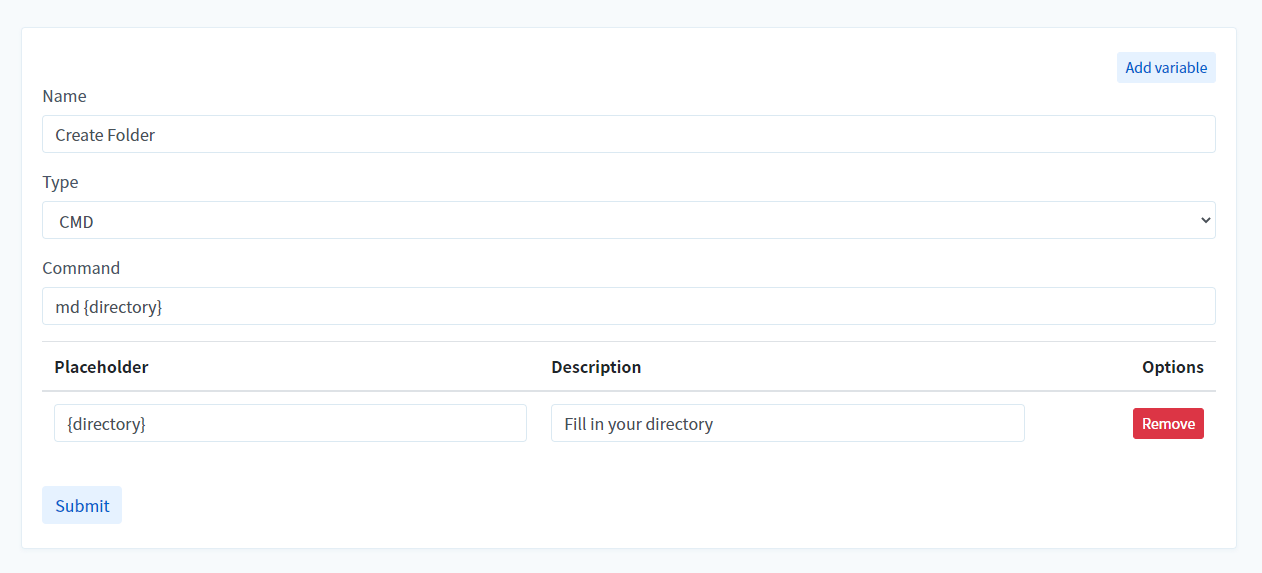
To describe what you see here, we'll break it down:
Command:
This is the command that is actually executed in the command prompt on the system that you are running the CraftingStore windows app on. You can use placeholders that you create below it in here. Like {directory}
Registry#
Here you can change registry keys, this may be useful for updating information that is nested deep inside of Windows. Like the OEM information on the system page.
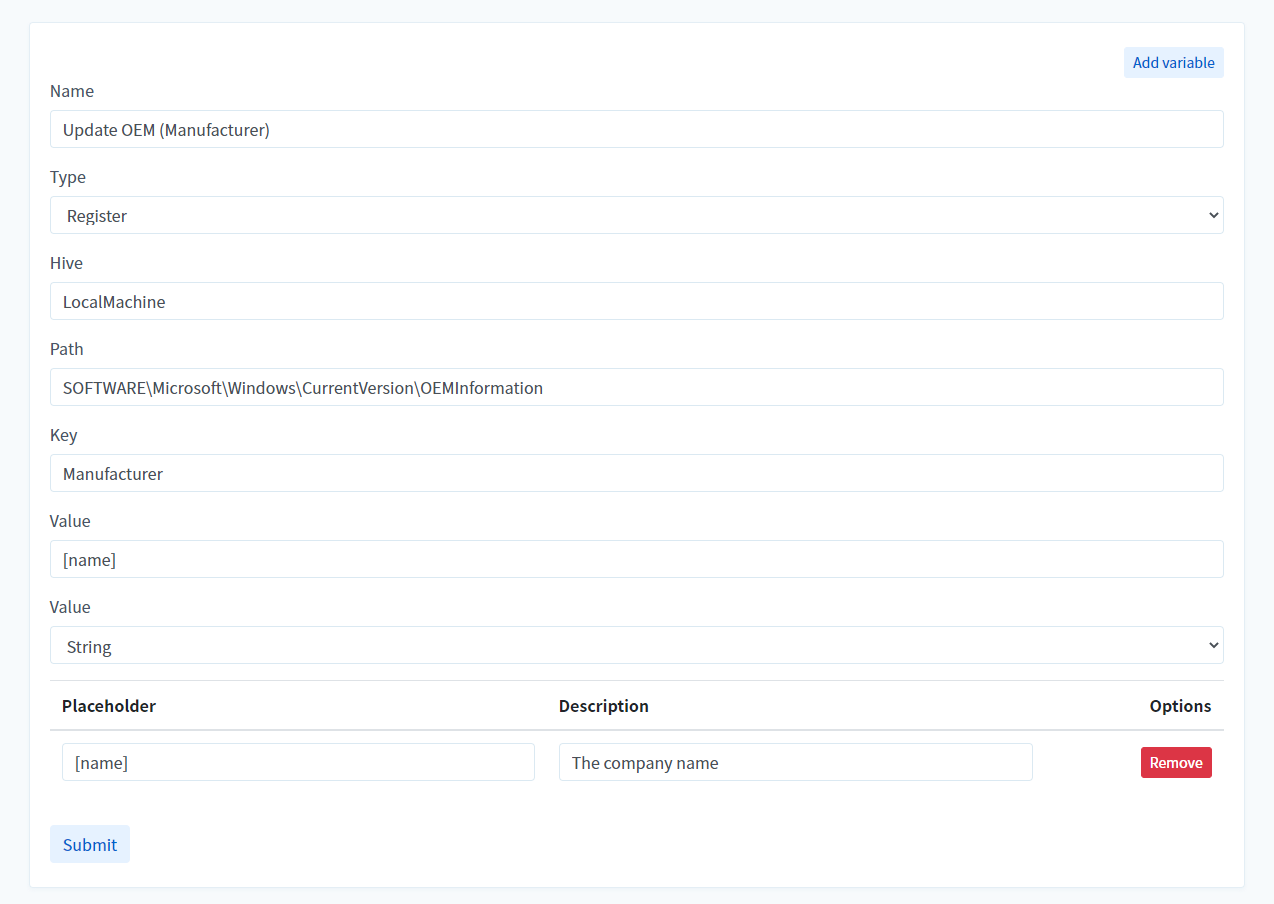
Just like the CMD type, you can use placeholders, and you can fill in the various fields that the Windows registry has to offer.